New VRC Smart Field Control System
This year at VEX Worlds we are rolling out our new Smart Field control system. This new system will be used on both the Skills and Division fields. The goal of this system is to allow our Referees, Field Operators and Field Technicians to make division and skill matches run as smoothly as possible. The additional data that is collected from the robots on the field will help our staff/volunteers quickly troubleshoot issues with teams. This system will also allow us to control the competition VEXnet radio channels better than ever before. That means less interference and less radio drops for divisional matches.
How do the new Smart Field controllers work?
The old field control system uses discrete digital logic to signal the states of the field. A single pin on the RJ45 connector would toggle from high to low to signal that the field was changing from “Disabled” to “Enabled”. There was no real data passed between the robots and the field. The new Smart Field controllers use special software running on a V5 brain. The field brain connects to the smart port on the V5 controllers to pass not only the same field state information as the old system but also additional data like the match clock time. The V5 controller can also pass information to the field controller about that state of the robot (radio link info, battery levels, is the user app running, …). This information can be used to quickly troubleshoot issues with robots on the field. The field brain also connects to the Tournament Manager software so all this information can now be displayed on the field monitor to allow the referees to know if all systems are good to go before the match starts.
Here are some screenshot of both the Match Control app and the Skills App
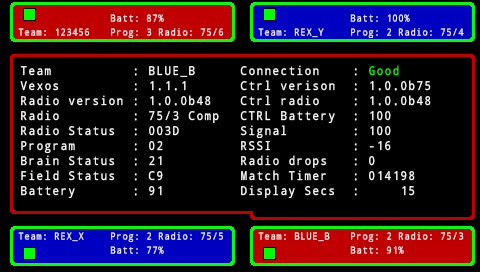
Match Control Team Details
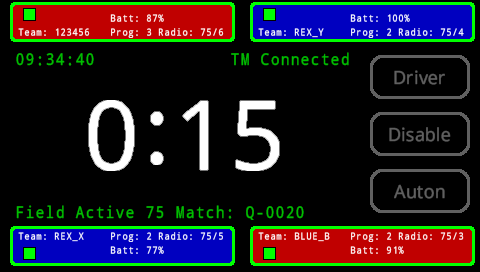
Match Control Ready
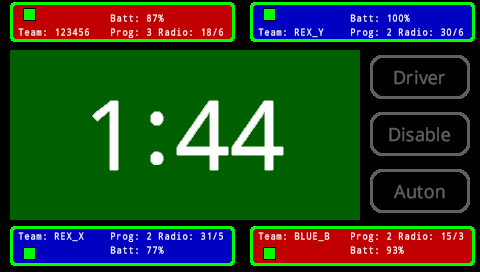
Match Control Running (driver control) Screen
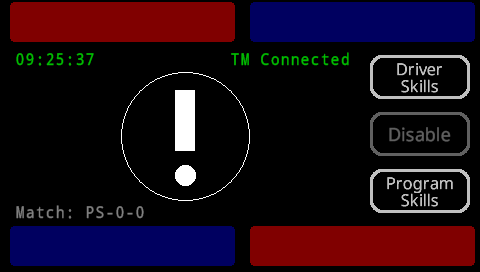
Robot Skills Waiting For Connection
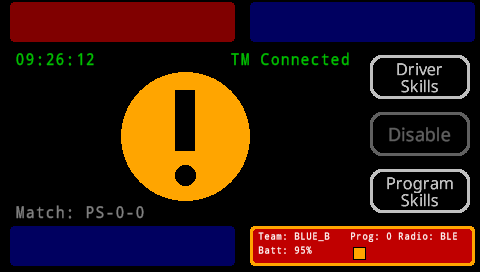
Robot Skills Error
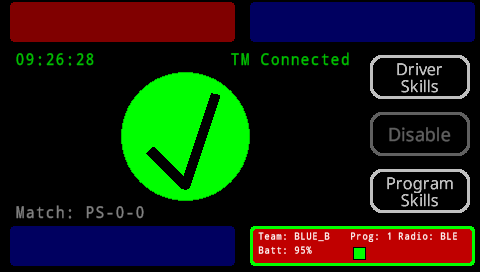
Robot Skills Field Ready
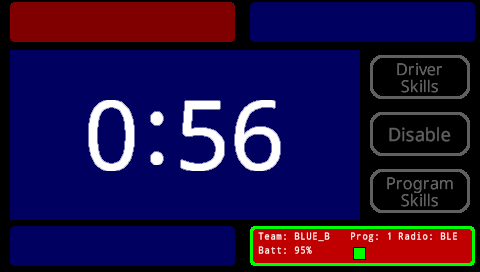
Programming Skills Run Screen
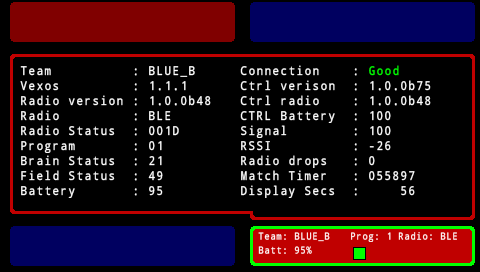
Skills Team Details Screen
Here are some sample Tournament Manager screens from the field display:
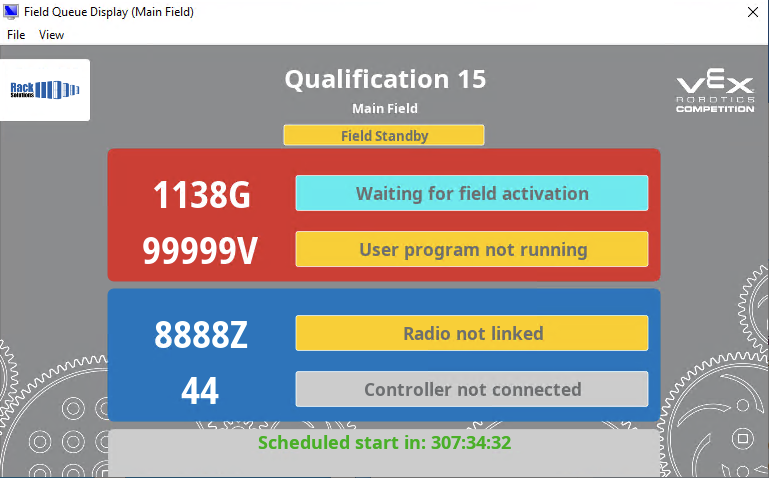
Queue Screen with warnings
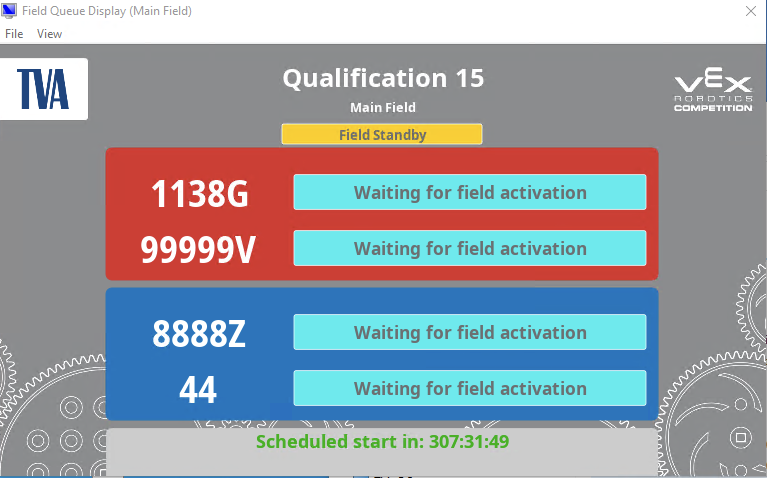
Queue Screen Waiting for Activation
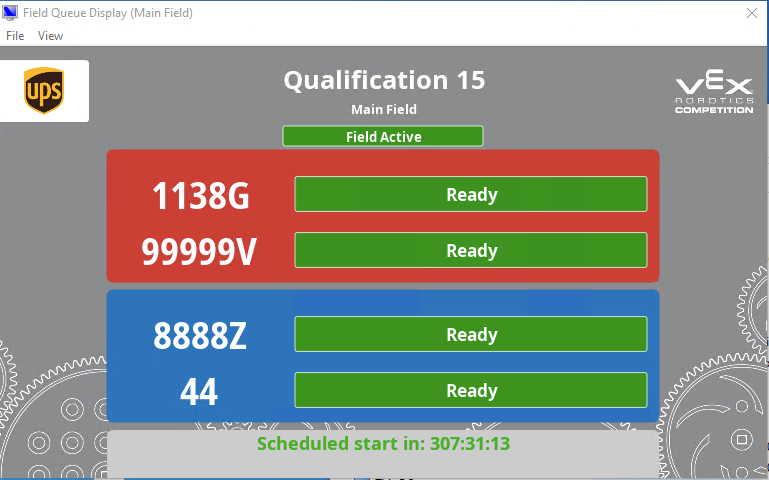
Queue Screen Ready to start.
How do I connect my V5 controller to the new Smart Field controllers?
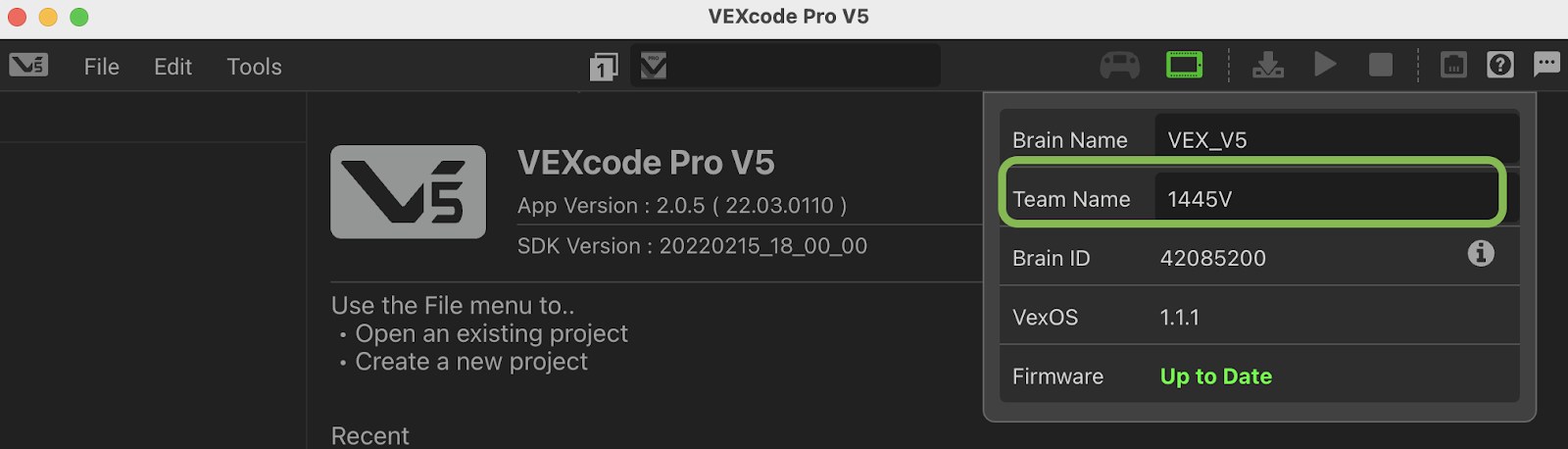
First make sure your robot is ready to connect to the Smart Field controller. Your controller and robot brain will need to be running the latest VEXos firmware (1.1.1). Also you will need to set your team number on your robot brain. Setting your team number in the brain allows Tournament Manager to display your robots status next to your team number on the field monitors. You will have the ability to set your team number during inspection but you can also set it yourself using
VEXcode Pro V5:
Or VEXcode V5:
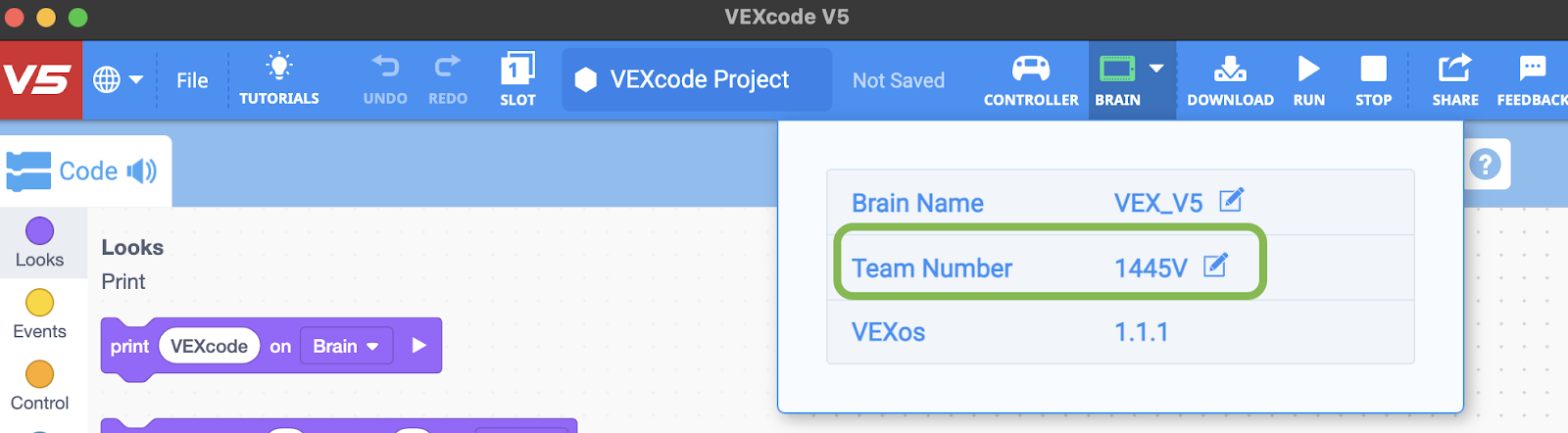
It is a good idea to have something to cover your legacy field control port. This will help to keep you from accidentally plugging in the new smart cable into the legacy port. Inspection will be handing out rubber plugs that accomplish this for you. With all of this accomplished, your robot should now be ready to connect to the field.
For VRC matches, each driver’s station will have two smart cables. It does not matter which cable you use. Blue team cables will be at the blue team’s driver station and the red team’s cables will be at the red team’s driver station. You can connect one of the smart cables to either of the two smart ports on your V5 controller.
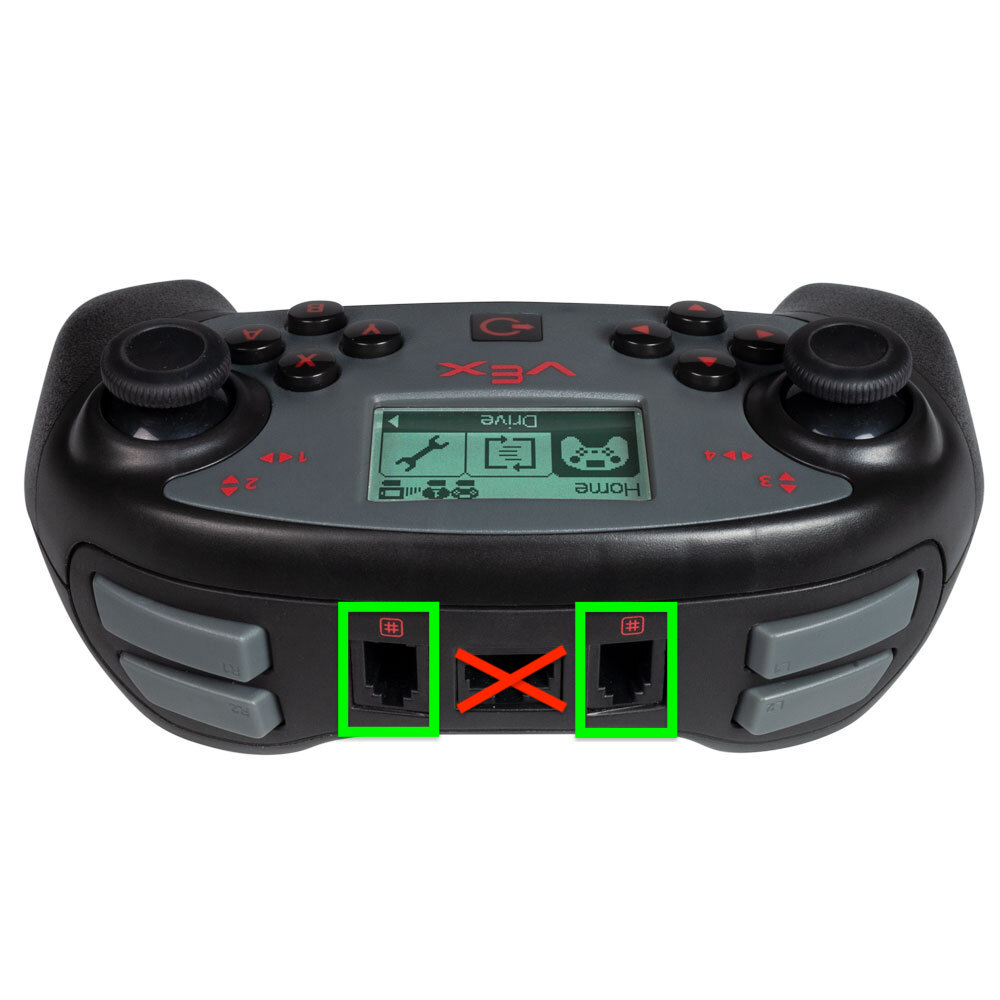
NOTE: MAKE SURE NOT TO PLUG THE CABLE INTO THE LEGACY FIELD CONTROLLER PORT. THIS COULD DAMAGE YOUR CONTROLLER. You should always connect the field control cable to the V5 controller that has the radio connection to the robot. So if you are using a dual controller setup make sure you plug the field’s smart cable into the controller that is paired with the robot. Once you connect the cable to your controller you will see the field symbol show up on the status bar of the controller and you are officially connected to the field.
For VRC Skills attempts, there will be one smart cable at the blue alliance driver’s station and one smart cable at the red alliance driver’s station. Based on the chosen starting position the team can use the closest smart cable to connect their V5 controller to the field control system. Once connected the field control icon should show on the controller screen and the robot is ready to start the skills run.
Will my robot act differently with the new Smart Field system?
As far as the control of your robot and how the match goes, no there will be no difference. The only thing that you will notice is how the radio connections work with the new system. With the legacy system, as soon as you connect your controller to the field the controller jumps to a competitions channel and then reconnects to the robot. With the new system that will not be the case. When you first connect the Smart Field cable to your controller you may see a radio drop but it will connect on a pit channel instead of a competition channel. We do this to make sure we do not have too many robots on the competition channels at any one time. Once the field operator is ready they will “activate” your field. The activation will only happen once all other matches in your division are complete. When your field is activated your V5 controller will jump to a specific competition channel and reconnect with your robot. So it is possible that your radio link will drop a couple times before the match starts. But don’t worry, the field operator will not start the match until every robot is connected on the correct channel and all teams are set and ready to go.
Also shortly after the match completes, the field will be deactivated by the operator. This will cause your controller to jump off of the competition channel and jump back to a pit channel, freeing up the channel for the next match. When this happens your robot will no longer link to your controller and you will need to power cycle the brain on the robot to regain link.
Will I be able to test with the Smart Field Controller app before worlds?
Yes. Connect a spare V5 brain to your Laptop/PC via USB cable and then navigate to:
Follow the instructions on the page and it will allow you to download the latest version of the V5 App to your brain.You can install both the field app and the skills app on the same brain but you need to select a unique slot for both programs. We are currently working on STEM Library articles for both of these apps. As soon as we get those published we will post links below.
Also please note that both the Match app and the Skills app will disable all ports on the V5 brain that it runs on. In order to return the V5 brain back to normal operation you will have to perform a “Reset All Settings” from the settings menu.
