The VEX extension does not handle static analysis, we leave that to your choice of what other extensions you want to install. My preference is the Microsoft C++ extension, is that installed ?
even with static analysis errors, the project should compile and download (unless you are using old motor APIs)
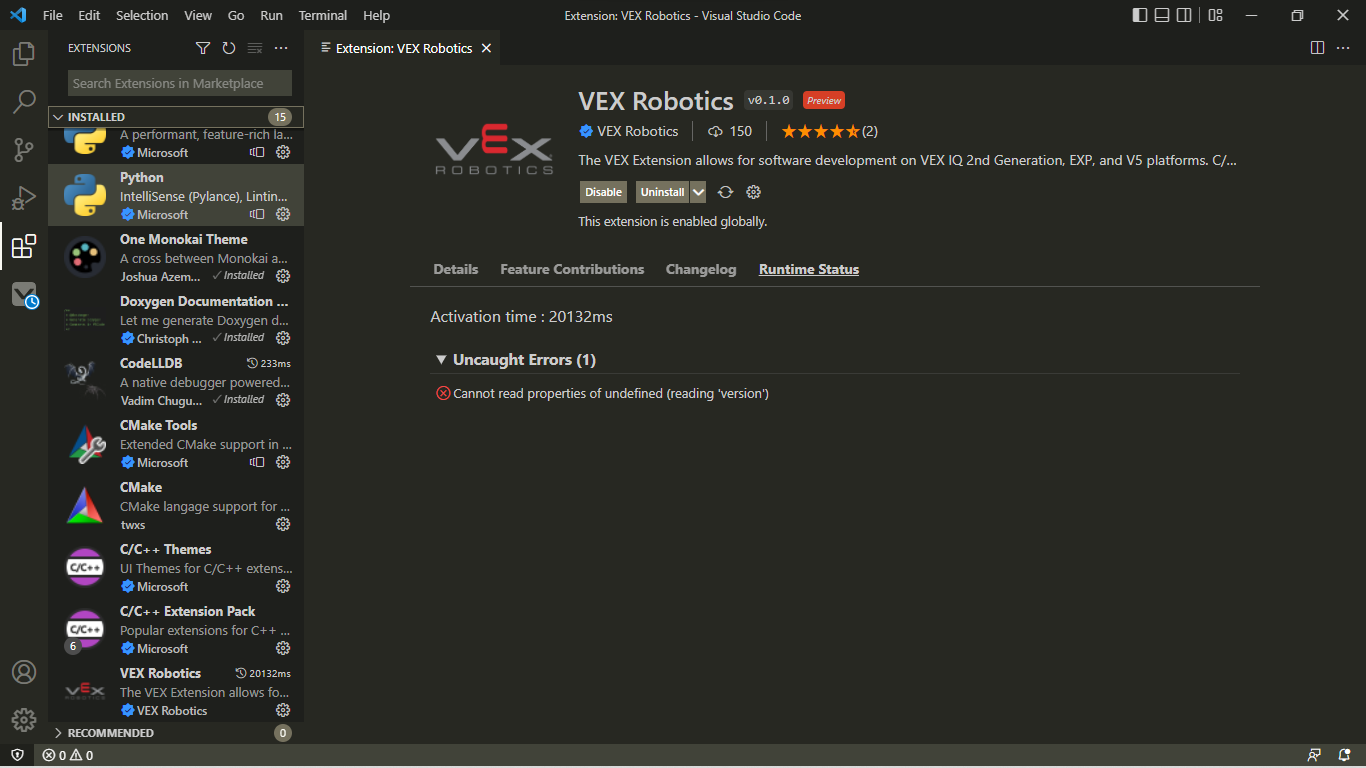
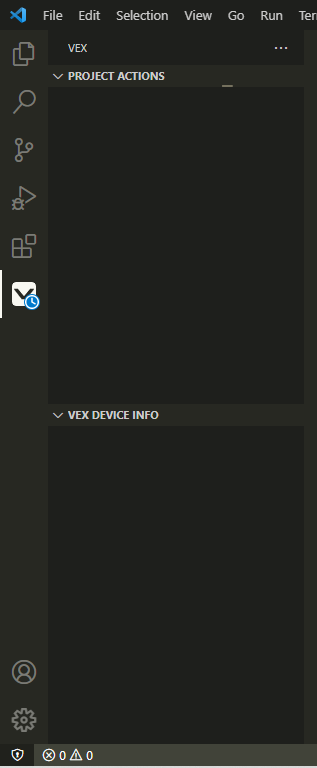
Hello, I am having trouble getting the extension to load. I have followed the knowledge base articles on how to set it up, however I can’t seem to get it to work. Here is an image showing this Error I am getting… Cannot read properties of undefined (reading 'version') (And the extensions I have installed)
Can you go to the “output” tab and send us the contents of the “VEX” and “VEX Resource Manager” logs, probably best to do that in a DM so we don’t clutter up this topic.
Mine has an error of not being able to include v5.h or v5_vcs.h and says that I should change my includePath. Is there a specific place from the extension I need to include?
static analysis can be temperamental, you will find all sorts of posts on the forum about PROS and static analysis issues.
We need a lot more information to try and make suggestions. We will start with this.
was this a new project or an imported project ?
are all the extensions enabled after creating/importing the project, VSCode will have many issues if the folder for the project is not trusted as it tends to disable lots of things.
This is just a follow up after digging into the problem with @Blnewc
If you have the VEX Extension and the PROS extension installed, it may be best to disable the extension that you are not using when switching between the two.
PROS requires clangd for static analysis.
When clangd is enabled, static analysis may not work out of the box unless you generate compile_commands.json file yourself. Currently our build system does not produce this file.
If you are using the VEX Extension, I would recommend disabling clangd and installing the C/C++ Extension.
When the VEX Extension creates or imports a project, the extension generates a c_cpp_properties.json file within the project’s .vscode folder. This file lets the C/C++ extension know what paths to search through when including sdk header files based on a project’s platform(V5, EXP, or IQ 2nd Gen) type. It also provides other settings to configure C/C++ Language server.
So please be careful if you modify this file because it can cause linter issues if the "includesPath": variable is set incorrectly.
Our team used to use cout to print things to the terminal in VEXCode, but this method doesn’t seems to work in vscode when we connect the controller to our computer. It does however work when we directly connect the brain. Is there a solution to this?
Thank you for your help. I had the clangd extension active because I was experimenting with PROS, disabling that and enabling the C/C++ Extension worked.
@Pi_way , what was your fix for that? We tried it on about 4 laptops so far with various degrees of operating system version, updates, with or without old versions of VEXcode etc. with great success but there is this one school laptop that refuses to start the extension no matter what. We get exactly the same error “Cannot read properties of undefined (reading ‘version’)”. Thanks!
This is a bug that will be fixed in the next preview version of the VEX extension.
If there is a space in an accounts username, like “Halen P” for example, this will cause the rest of the path to be treated as an argument when vexcom is launched.
This causes the extension to fail.
This is not limited to the computer’s username. The same issue will occur if a space exists anywhere in vexcom’s absolute path.
As a work around for now , you could change the computer’s username and removed any spaces.
For example, change “Halen P” to “HalenP”.
Or you could create a new account without spaces in the username.
I am not completely sure this is possible (at least by default). From my experience, changing the username for an account changes the display username, but the path to the user folder stays the same.
as in:
Before change:
Username: “Bob Joe”
Path: "C:\Users\Bob Joe"
After change:
Username: “Bob_Joe” (or something)
Path is still: "C:\Users\Bob Joe"
There is a reliable way to rename an account properly but it requires Admin access and might not be worth the trouble:
reboot and login as Admin (might need to enable first - school laptops might be locked)
Win+R then type and run netplwiz and change user name in there (ex. Bob Joe to BobJoe)
Open a command box and do
cd c:\users
hit Enter
ren “Bob Joe” BobJoe
hit Enter (need those double quotes)
Click Start, type regedit, run it
go to HKEY_LOCAL_MACHINE\SOFTWARE\Microsoft\Windows NT\CurrentVersion\ProfileList
You need to click through all the profiles and find the one that says %systemroot%\system32\config\Bob Joe in the ProfileImagePath
When you find it, double-click ProfileImagePath and modify value to say BobJoe at the end.
Reboot.
PS. If any of the above looks foreign, please skip and just make a new profile or ask whoever’s in charge to do so because you can really mangle your Windows installation with all this…
@holbrook: I got it to work seamlessly on Ubuntu 20.04 as well but no serial comms. Were you able to hook up a brain to it? Sorry I’m causing trouble in this thread, just very excited about this extension and all the new opportunities… If it worked for you, then I’ll poke around my serial/USB settings. Thanks.