Update: Changing color theme from Monokai Pro to any default theme (light/dark) has fixed the problem.
Can confirm that I have this issue as well. Using the monokai pro theme on Windows 11 25300.100 on VSCode Insiders 1.77.0.
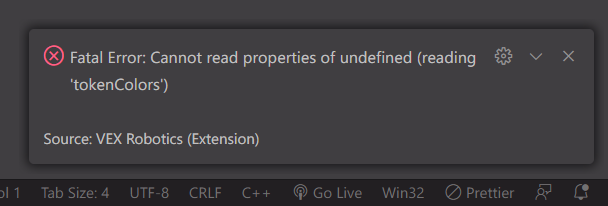
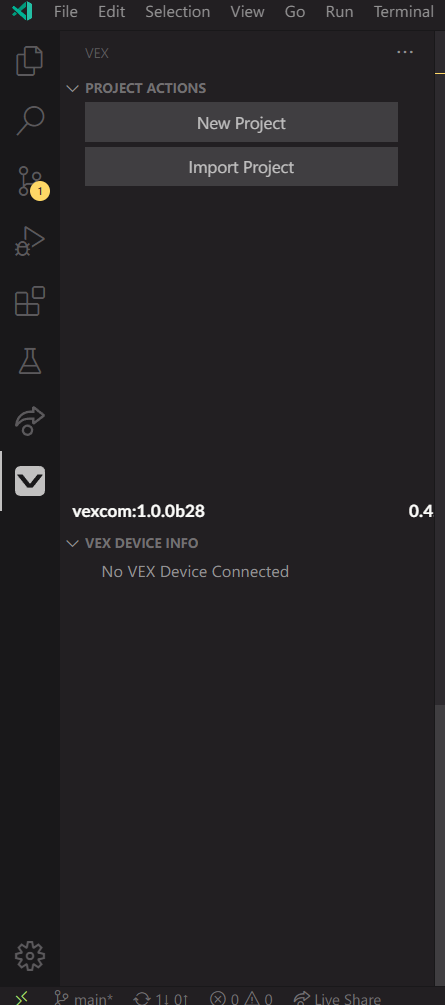
The extension is not loaded into the toolbar, and plugging in the V5 controller yields no results. The extension doesn’t recognize that an active project is open in the current workspace, and shows the default sidebar pane.
2 Likes
So I was able to reproduce the issue.
It has to do with custom installed color themes packaged.json format.
For now I would recommend using one of the default built in themes.
I’ll try to get a patch out sometime next week.
Let me know if you run into any other issues , thanks!
7 Likes
VEX Extension 0.4.1
Bug Fixes
- VEX Command Help custom color theme extension bug.
- Adjusted json parsing to handle custom color theme package.json.
- Extension will now assume a default theme if no matching color theme is found.
9 Likes
Thank you for the update, my kids are excited to use their controllers again. Perfect timing as we prep and redo some of their codes for worlds!
1 Like
Awesome!
But we will have IQ gen 1 support in the future?
No plans to add IQ Gen 1 Support.
2 Likes
Is there any way to add the competition template in VSC like how there is one on VexCode V5 for Python? I transferred that one into ours but just wanted to ask for some new teams or new programs.
I’ll try to get a python competition template added to the next release of the extension.
Thanks for letting me know!
9 Likes
Apologies if I missed it (scanned through this thread and others):
Was the vision sensor implemented yet? How about the GPS camera?
Also noticed something strange but can’t pinpoint the cause yet, will elaborate when there’s more understanding of the issue (simply because I don’t want to hear “just upgrade to latest Windows 3000 or reinstall Windows” or the like LOLOL, sorry for the jade. On laptops with discrete Nvidia GPUs (the so called “gaming laptops”), VS Code with VEX extension slows down to a crawl with almost 100% CPU/RAM utilization after some time (not immediate, something accumulates in time causing the machine to heat up and the fans to go nuts). Confirmed on an MSI, an Eluktronics and a few DELLs. On laptops with standard Intel integrated graphics everything runs fast and smooth and “norminal”. We use Python with the VEX extension. Disabled all the addons (Pylance etc), did not help. Tried different tricks from our friend Google - switch hardware acceleration on/off and the like - did not help. Uninstalling VEX extension brings things back to normal (currently using vanilla VS Code to code HTML/CSS just fine). Not a deal breaker / priority, just wanted to bring it up in case others experienced this and have any insight. Thanks.
The vision sensor utility is a lower priority feature and won’t get added until after 1.0.0 is release.
The vision sensor is in the current sdk.
Not sure what you mean?
The GPS is also included in the current sdk as well.
Hmmm yeah I’m not sure, if you can give me some more specifics like:
- What version of windows?
- What version of vscode?
- What version of the VEX Extension?
and I’ll try to look into this after I get back from worlds, thanks!
4 Likes
I have been exploring ways for students to use this extension on their Chromebooks. Using GitHub Codespaces I can set up a virtual Visual Studio Code and install extensions, and is free to use for students and classrooms.
Wanted to flag that I still had the “Fatal Error: Cannot read properties of undefined (reading ‘tokenColors’)” when I first installed the extension in the cloud environment using the Dark+ theme that I believe is a default. This is from a blank codespace that has no other themes or extensions installed yet.
I switched to “GitHub Dark Default” and that seems to have loaded the extension now. I don’t know if any other themes work too. It runs and I can create new projects, will have to continue testing to see if it actually can connect and write to the brain within the browser. This will give my students access to git and pair programming while still using their Chromebooks. We don’t have a computer lab anymore to run Windows apps.
1 Like
What version of the extension are you using?
You can find this by:
- Clicking the VEX sidebar icon
- The extension version is located in the bottom right hand corner of the Project Actions panel.
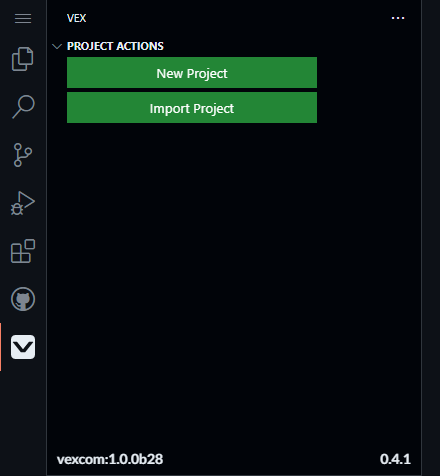
So I set up a Codespace and installed the VEX Extension version 0.4.1,
I was not able to reproduce the fatal error, but this was an issue for version 0.4.0.
Are there any other steps you took to produce this problem or did it just happen on launch?
This is a really neat concept for writing and testing code!
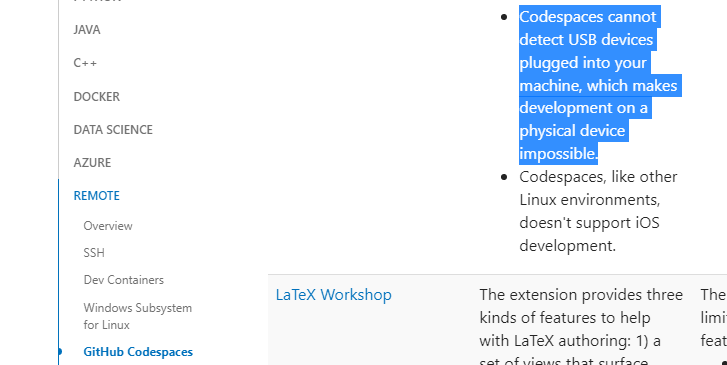
Unfortunately it does not look like Codespaces can detect USB devices plugged into your computer. So you won’t be able to download user programs from the browser to the brain.
(This is from the visual studio code documentation online. )
2 Likes
This was with version 0.4.1, but the error is only appearing on installation or reload for specific themes. After I install the extension with a compatible theme I can switch to any theme and it still runs, but I do notice that when I refresh the page with a problem theme turned on the error comes back. Something about the initial load of the extension with certain themes is still bad for CodeSpaces.
To reproduce: Start a new Codespace using the “blank” template. Switch to the “Light Modern” theme and refresh the page to make sure the theme is set, then try to install VEX 0.4.1 from the store. I get the error every time with nothing else installed yet and no setting changed from default. Then switch to theme “GitHub Light Default”, refresh the entire page to reload the CodeSpace, and the extension will install correctly.
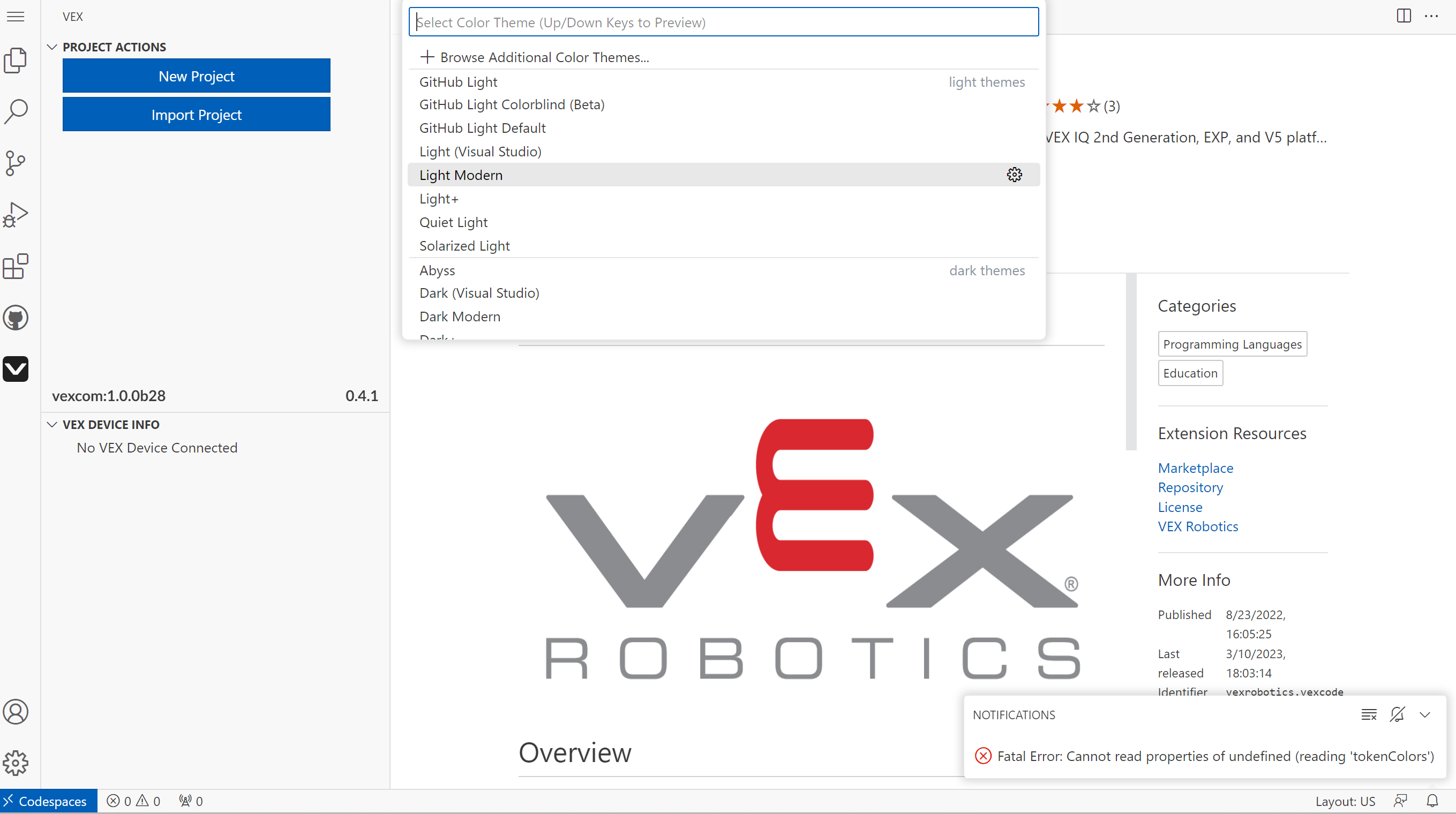
Other themes that haven’t worked for me are: “Light (Visual Studio)”, “Light+”, “Quiet Light”, “Dark (Visual Studio)”, “Dark Modern”, “Dark+”, “Monokai”.
Workaround: Use certain themes when installing from the store. Working for me are: “Github Light Default” and “Github Dark Default”. Don’t refresh the page while using other themes.
Thanks! I really want them to be able to work on their own devices but still be able to learn the advanced workflows. That’s a shame about USB devices. In that case they could still benefit from GitHub and Live Share of code to write, but then would have to download and upload to VEXcode to put onto a brain, correct?
1 Like
So I was able to reproduce your issue, this issue is limited to Codespaces only.
For some reason vscode’s default themes extension is not installed on the linux VM, but is still accessible from the editor itself.
Normally when a theme isn’t found, the VEX Extension defaults to either Dark+ or Light+ for VEX Command Help depending on the style of the initially selected theme. But since these themes are a part of the “Default Theme Extension”, the VEX Extension throws an exception because the theme is not found.
So unfortunately you will run into this issue with any theme that comes pre installed in your codespace environment. There is one exception. Any of the GitHub Themes should work fine because it is a store installed extension and does exist on the VM locally.
Yeah I think so as long as they are copying/pasting code directly into the VEXcode editor.
I’ll try to get a patch out sometime next week. Thanks for bringing this issue to my attention!
Let me know if you run into any other issues.
I appreciate your feedback and help, thanks!
4 Likes
VEX Extension 0.4.2
Bug Fixes
- VEX Command Help: Codespaces default color theme issue.
- Added backup theme to act as a placeholder when theme extensions are bundled into vscode or built in themes are not found.
- Fixed project creation bug when offline.
- Fixed sdk version bug during project creation for C/C++ projects.
- Fixed race condition that could prevent the user port from being opened. This occurred when a device was detected before a valid vex project was found.
5 Likes
Is there a way to determine the VEX Extension version that is installed in Visual Studio?
Just follow this video.  (Basically no reason for me to make a video for this, but It took 3 minutes.
  )
)
2 Likes
Thanks and the video is appreciated! I had clicked on the “V” under Project Actions and saw “vexcom 1.0.0b28” and thought either this was wrong or I had missed a update announcement.
Yeah, the extension should automatically stay up to date.