LFG levipope VS Code is some much better than Vexcode V5.
Left Windows 10 laptop on last night because it would not shut off and was doing some big MS update. This morning went to change something in the code, but Microsoft Visual Studio Code simply vanished. Poof. Gone. Disappeared. Nowhere to be found on the laptop.
UPDATE: Reinstalled and everything came back, all extensions, git, code and the rest. This was a very weird experience.
2 Likes
Thank you!
Question: how does the VEX Extension deal with the vision sensor? Namely how to calibrate signatures, colors, white balance etc. Is it possible to use the presets from the brain screen vision sensor test screen? As in instead of looking for a specific signature inside the snapshot just look for objects that are defined as RED in the brain test screen? In the past, no matter how much we fiddled with calibrating and re-calibrating that thing, nothing ever matched the amazing reliability of that test screen to find red blue green or yellow blobs.
2 Likes
So the VEX Extension does not support the vision sensor currently. This is on our feature todo list, but will not be in the next preview release, v0.3.0.
To be honest, I don’t know what the vision sensor configuration settings are on the dashboard, but we could probably look them up. @jpearman might know as well.
6 Likes
So we calibrated, recalibrated, showed that camera every possible red object, turned lights on and off, used the Vision Utility UI and also tweaked numbers randomly and/or seemingly with logical intent, ate some corn, then came back and calibrated and recalibrated some more. The bestest outcome we could come up with is this. This image does not even do it justice as everything bounces around like fireworks and number of objects and their coordinates are all over the place.

Then we kill the code, restart the brain and go to the dashboard. No more calibrated signatures carefully crafted to our environment, lighting and redness, just boring old defaults programmed in by James. This thing not only perfectly outlines the 2 sections of the red goal but it does not move, just sits there +/- 2 pixels mocking us with its perfection.
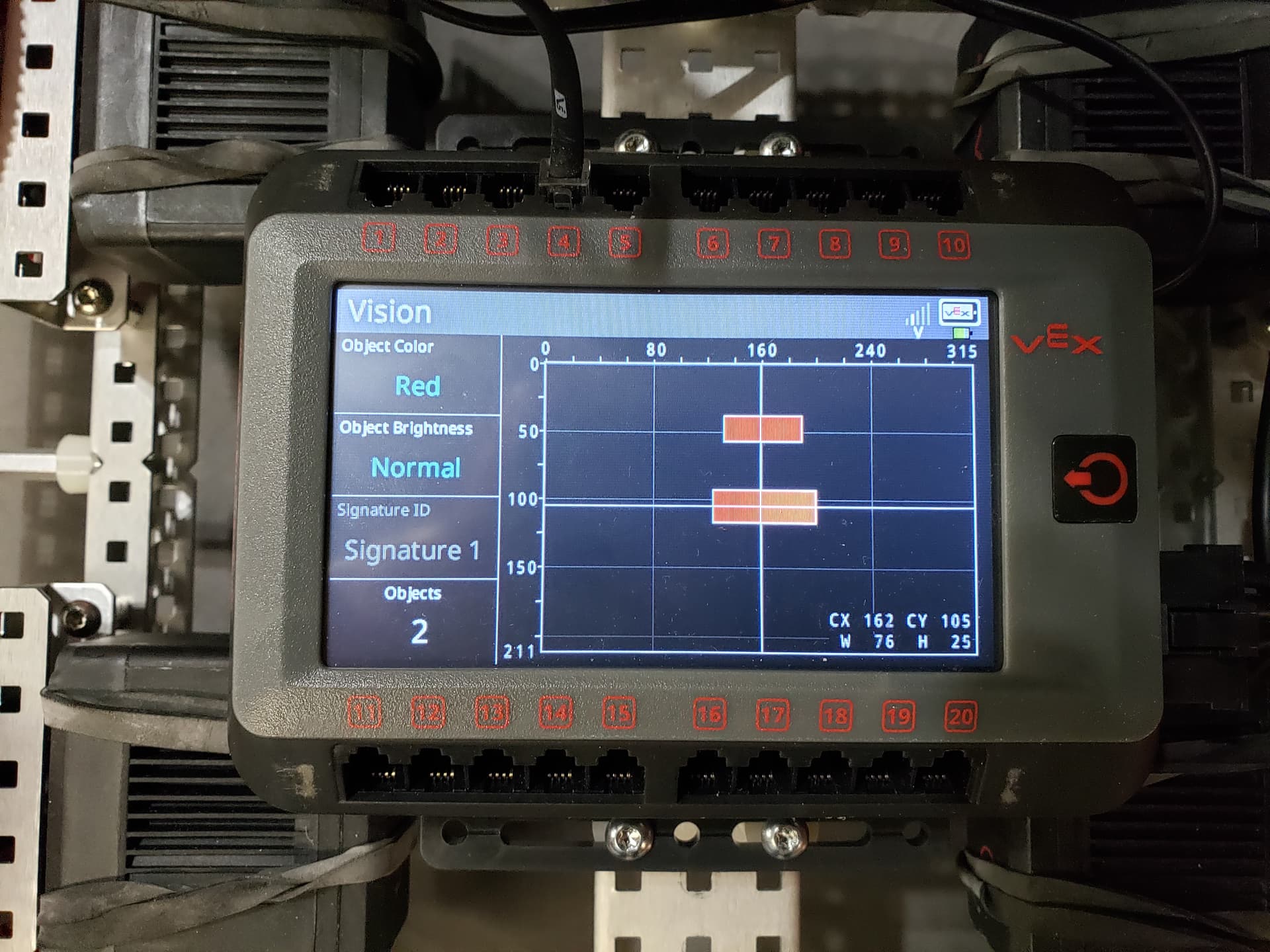
There is only one explanation. James uses alien technology and/or dark magic.
15 Likes
VEX Extension 0.3.0
A new version of the VEX Extension has just been released
Change log
Features
- Added Interactive Terminal Support for V5 Controller
- Updated project import for VEXcode Pro V5 projects ONLY
- Import project will update the existing project instead of creating a new
project and copying the contents from the old project.
- Import project will update the existing project instead of creating a new
- Added Websocket Server
- Sends user port data to connected websocket
Bug Fixes
- Vexos version compare bug.
- Fixed import project platform case.
- Extension could not find template projects on case sensitive file systems.
- Updated vexicon font. Visual Studio Code version 1.72.0 broke old icon font.
10 Likes
Does this imply a future where the Extension (or some other plug-in) could graph data from a connected Brain (e.g. motor RPMs, motor temperature, GPS data, etc.)?
4 Likes
So we wanted to give students the ability to log, graph or even create custom dashboards from user port data to display in the web browser. VS Code supports node js projects that can be launched in a user’s local browser.
So a student could create their own nodejs web app that:
- Opens the VEX Extension device websocket
- Display data in desired format using CSS, HTML, and Typescript/Javascript
Eventually I am going to add a multi workspace template project to the extension that will include two projects:
- VEX C++/Python Extension Project
- log motor data to user port
- Nodejs project ( Javascript/HTML/CSS)
- open websocket
- graph data
There are a lot of open source modules that are available through npm (node package manager) for graphing, or visualizing data. But really the skys the limit on how a students wants to display data.
17 Likes
@hphillips : Thanks for 0.3.0 and for all the work put into this.
Any idea of an ETA for that Vision sensor? Can it still be used as is by adding sigs manually from let’s say the VEXCode V5 Vision UI and then scrape the generated hue numbers from config? Or it currently can’t talk at all to the Pixy to pass data? Thanks.
Is anyone having issues with visual code not seeing the brain when connected to the controller. When trying to download to the brain from the controller it says it’s downloaded the code but shows nothing on the brain.
When checking vex extension, it says brain is not linked. My kids have had to connect directly to the brain to upload their codes. Just wondering if anyone else is having an issue? We’re using Mac’s (yes I’m that guy)
Halen reminded me that there had been a request for the signatures that vexos uses to detect objects in the dashboard. They are nothing special and were created using the same tools you have, they are.
vex::vision::signature RED_BALL    = vex::vision::signature (1,  9127, 10643,  9884,  -607,     1,  -302, 6.9, 0);
vex::vision::signature BLUE_CUBE   = vex::vision::signature (2, -3615, -2849, -3232,  7837,  9429,  8634, 3.7, 0);
vex::vision::signature GREEN_CUBE  = vex::vision::signature (3, -6371, -5205, -5788, -3855, -2855, -3354, 3.0, 0);
vex::vision::signature YELLOW_CONE = vex::vision::signature (4,  2159,  3375,  2766, -4481, -4079, -4280, 7.4, 0);
14 Likes
Appreciated, James. Nothing special you say. Hmmm. We’ll see lol.
5 Likes
I have a couple of questions about how the websockets work in the vscode extension.
- When does the extension send data over a websocket? I was able to connect a websocket object in the chrome console, and sent some data, but there was never a reply.
- Is there a specific format for the data?
So the websocket server acts as a 2 way straight between the selected device and the websocket connection. There is not a protocol. What you send is what you should get.
If a VEX Device is not connected, then any data received will be logged to the interactive terminal and dropped.
So I would check a few things:
-
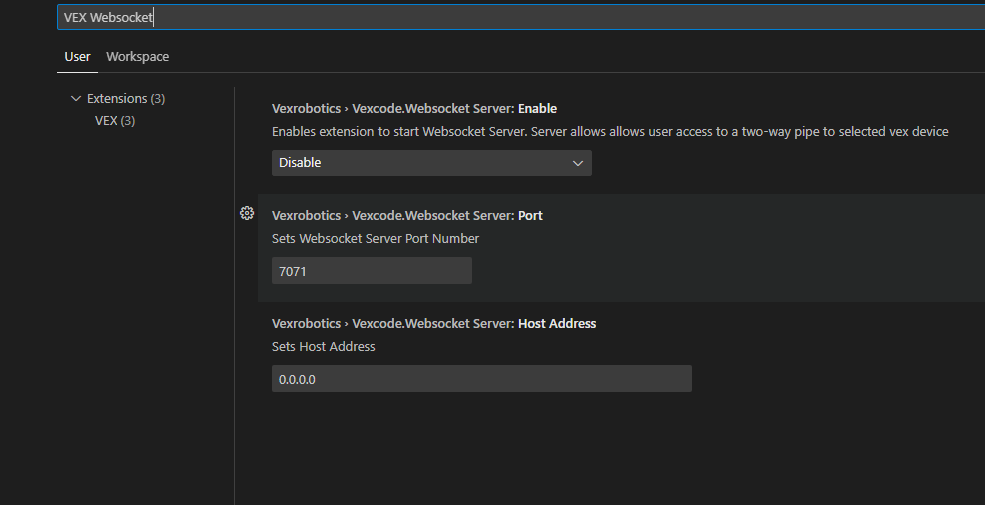
First verify that the websocket server is enabled in User Settings.
You can find this by:
-
Click Settings Gear in bottom left hand corner.

-
Select “Settings” in the context menu that appears.
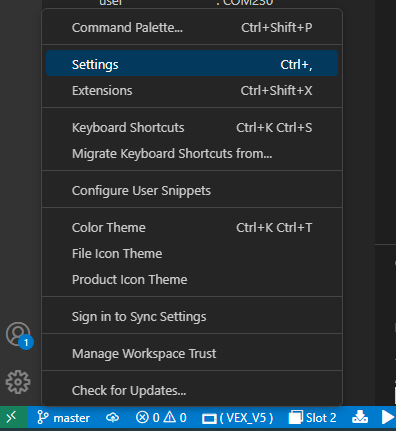
-
A settings page should appear. In the search box type, VEX Websocket
-
Check that the web socket server is enable.
-
-
Finally in your js/ts code you will need to hook your web socket object onto the following url:
'ws://localhost:7071/vexcode/device'

Here’s what the interactive terminal looks like might look like:
- The green message is written when a websocket connection is opened
- The blue messages is data received from the websocket connection
- The red message shows websocket disconnects

I will try to get a simple multi workspace example project together by the end of this week.
I’ll put it on github and post a link here once the example is live.
What platform are you using by the way?
Is it V5, EXP, or IQ 2nd gen?
2 Likes
Thank you for the instructions, they were very helpful and I got everything working.
I am using v5.
VEX Extension 0.4.0
Features
- VEX Command Help update:
- Updated syntax highlighting to match vscode theme for code blocks and in-line code in command help files.
- Function prototypes are listed in VEX Command list if available.
- VEX event log upload:
- Allows user to upload log from a V5, EXP, or IQ 2nd Generation Brain.
- Upload defaults to 1000 entries, but entry count can be adjusted in the VEX Extension user settings.
Bug Fixes
- Fixed extension connection state issue for V5 Controller connection status. Extension would think controller was disconnected when a V5 Controller reestablished a wireless connection with a V5 Brain.
9 Likes
mmmmm idk if it’s related but now i keep having this weird error when trying to open vscode with the vex extension:

I tried restarting vs and reinstalling the extension didn’t work
What os are you using?
What color theme are you using with vscode?
2 Likes
I am using windows 10 and my color theme is Community Material Theme Ocean High contrast
But it was working yesterday but then yesterday night it stopped working somewhy
Can you try switching back to one of the default themes, Dark +(Default Dark), then restarting vscode.
Let me know if that fixes your issue
3 Likes