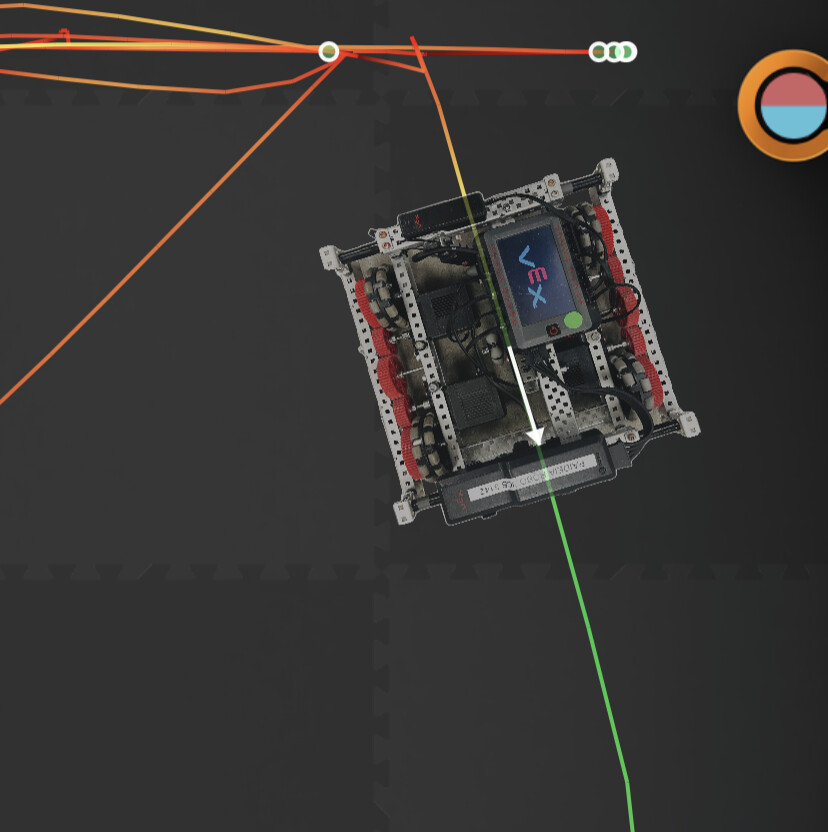
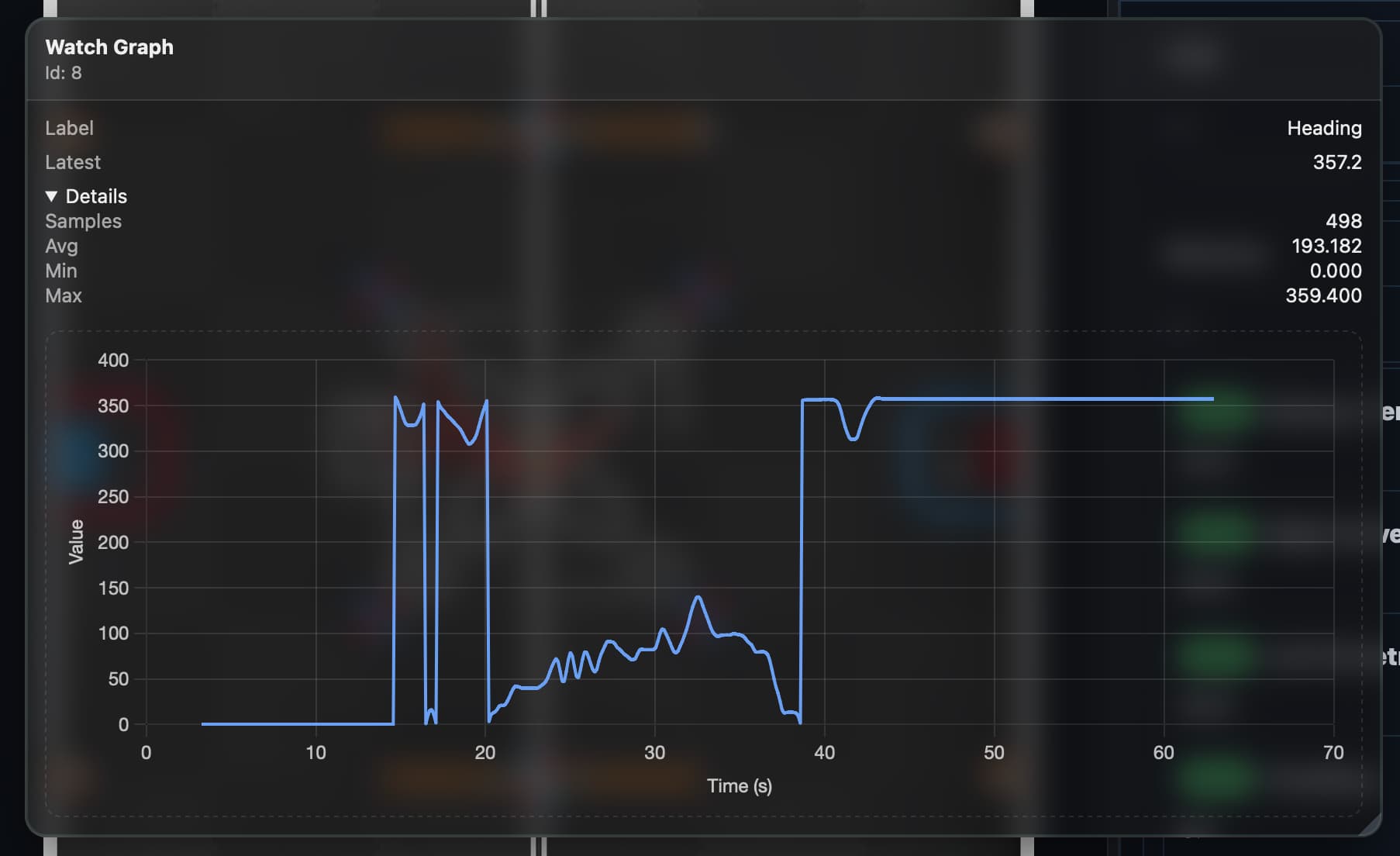
MotionView: Live PROS Viewer: Update v1.0.0!

Hello everyone,
I am extremely excited to announce MotionView v1.0.0! I have been working on this version for a couple of weeks now, and have written ~5,500 lines of code across more than 50 files to make it a reality.

In case you don’t know, MotionView is a passion project I’ve been working on that lets you livestream your robot to your computer. Everything is laid out on a nice, intuitive dashboard:
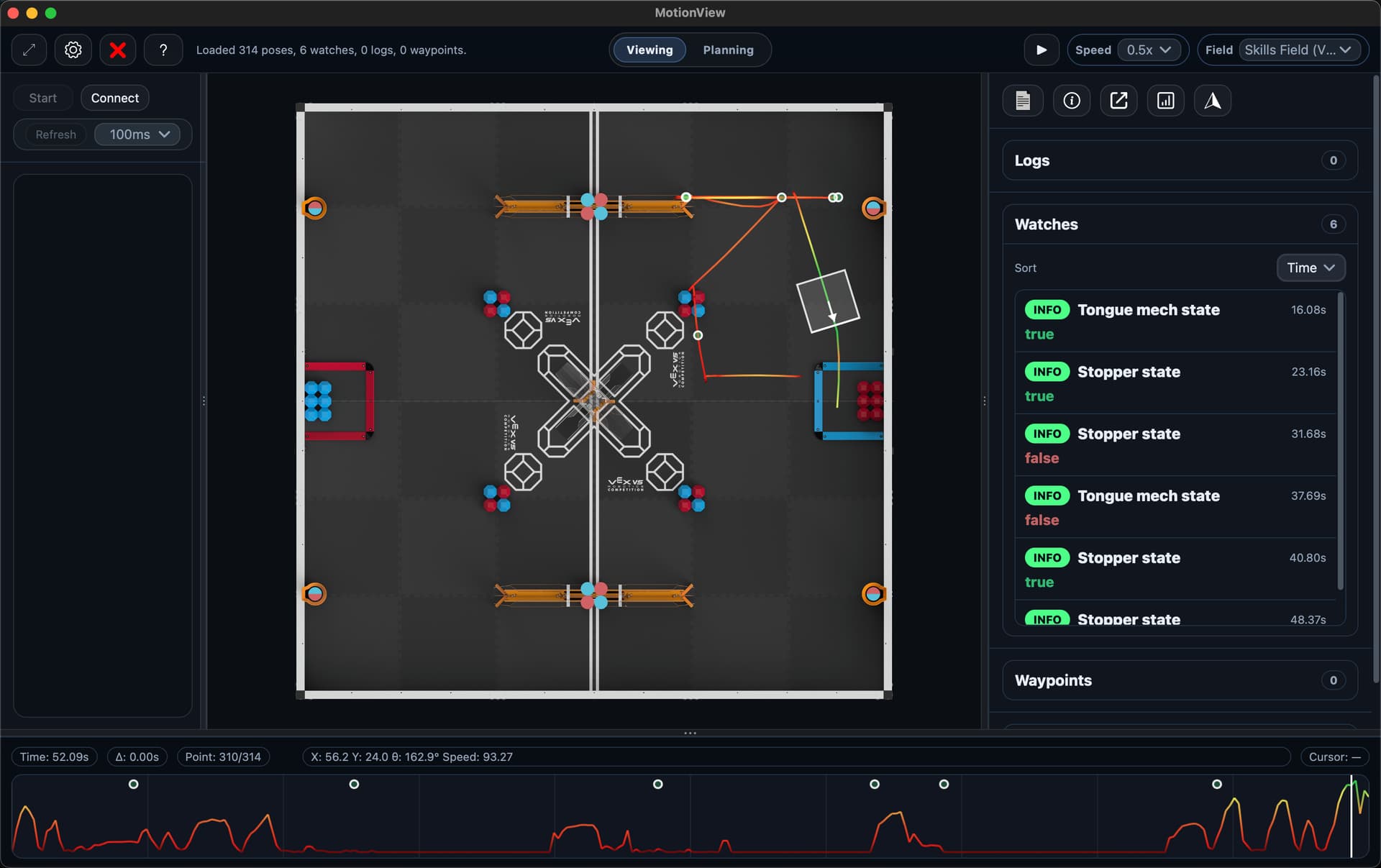
The main new features this update added are Waypoints and Logs.

Waypoints

Waypoints are a way to mark a location. Waypoints could be used for driver routines, auton analysis, and anything else you can think of. Waypoints show up on the field visually, similar to watches. I won’t go into much detail here, but please read this doc if you’re curious.

Logs

Logs are a clean way to connect and visualize scattered information. Unlike Watches, which are structured and organized, Logs are whatever you want them to be. You can log in all levels, whatever information you want. Maybe you want to put one in between your auton stages, or log a distance sensor.

auto& logger = mvlib::Logger::getInstance();
logger.debug("This is an debug level message");
logger.info("This is an info level message");
logger.warn("This is an warn level message");
logger.error("This is an error level message");

These logs show up in the Logs box of the sidebar, and if you click an entry, you can see where the robot was when that was logged.

If you’re interested, click this link to download.

Documentation for MotionView is the README and the Other Docs.
Documentation for MVLib is the README and the Other Docs.

Thank you for reading all the way through this! Any feedback is greatly appreciated.
After 5,500 lines of code for v1.0.0, I feel like I’ve hit a ‘completion point’ for the core logging types. Between Watches, Poses, and the new Waypoints and Log Stream, I’ve added every way I can think of to get data out of the robot and onto the screen.

Right now, MotionView lets you stop squinting at the tiny brain screen or getting lost in a scrolling terminal of raw numbers. MotionView turns that data into a live visual path, giving your logs the spatial context you need to see exactly where a failure happened instead of just what happened.

Because I want MotionView to be the ultimate tool for V5 (and later IQ/U) teams, I’m turning it over to you. I’m at the point where I don’t want to just add features I think are cool, I want to add what you actually need.

What’s missing from your workflow? * Better PID tuning tools?

  • Visualizers for specific sensors (Vision, GPS, Distance)?
  • Comparing Auton runs?

If there’s something that makes you say ‘I wish I could see {X} on the field,’ let me know.

Download links:

Reach me on Discord (howtoguide) or right here in VexForum..

Your repo needs a license

Thanks. I just added an MIT license to the repo root

Thank you for creating such a great tool !!! I’m very excited to try this out and I have no doubt that I will use this program all the time. Also I do think a compare auton feature would be cool as well as the ability to compare different driver skills runs. Once again, thank you for devoting your time to creating this program. I greatly appreciate the time and effort you must of put into this project. By the way the dashboard looks awesome!

Thank you so much! It really means a lot to hear that. Building v1.0.0 has been a journey, and knowing it’s going to be useful for teams makes it all worth it.

The ‘Compare’ feature for Auton and Driver Skills is actually at the top of my ‘What’s Next’ list.
I’m curious, would you find it more helpful to see a ‘ghost’ robot replaying the old run alongside the new one (like as you play back, you can see both robots move at the same time), or just the two paths overlaid on the field?

Thanks again for the support, and let me know how your first tests go!

Personally, it would probably be more helpful for me to see the paths compared, but I do really like the idea of seeing a “ghost” robot I feel like that would give a great visual aid (especially for driver controlled) that would help a lot of people compare the runs. Overall, I think both would be really great features.

I think it’s really cool that you’re taking input from the community, I feel like it’s something that most of these kinds of projects lack. I want to say thank you one more time for creating this, I’ll use it a lot coding auton and I know we will also use it a lot to discuss driver skills.

I’ll let you know when I get a chance to use it, but I’ve already downloaded it, and it looks great!

Once again, thank you for the support! It’s a really good feeling to make something and have people use it.

While comparing runs, I was thinking I could expand the floating info panel to show something like Run: A | B so you can see the numbers for the different runs all in the same place. When you would play back, MotionView would sync the runs so that they would both play from a common starting point, which would make analysis much easier. There would also probably be two toggles for making run A and run B visible or hidden. When you import a run or start livestreaming, you would get to choose if you’re going to log to the primary (A) or the secondary (B).
I don’t know how I would handle the timeline and sidebar, but it would probably be with a toggle to switch between run A and B.
This is a rough outline with lots of flaws and questions, but I’m curious to know if this behavior would be useful and intuitive for users.

That idea seems very intuitive to me, and I think it’s a great idea. It would be a very useful feature. I don’t know if you’ve already thought about this, but it would be helpful if it could support more than 2 runs being compared at once.

I was, acquainting myself with your app, and I just wanted you to know, that I think it looks incredible. Everything, is very user friendly, and everything feels polished and thought out. I also really appreciate the recenter view button, the small things really matter to me.

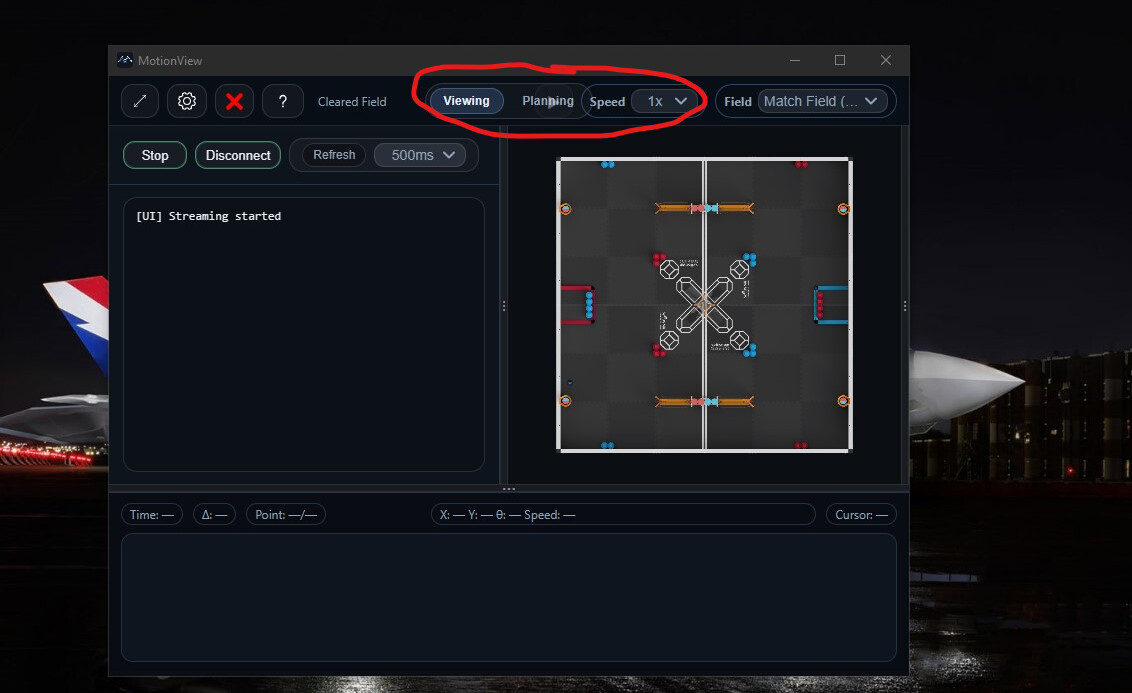
I can’t wait to see this app progress and I can’t wait to use it in this coming season. (I’ll be telling EVERYONE about this app) One more thing, very small detail that doesn’t matter AT ALL, but I thought I’d let you know. In windows, when the app is not in full screen, the top option bar sort of glitches out. Here’s a image of the bug.


I highlighted the glitch with a red circle so you could see where it was, but the image doesn’t really show the glitch. The options sort of glitch in and out. I know that it would be hard to track down the source of the glitch and it doesn’t really need to be fixed, but I thought I would let you know.

Wow, thanks for the praise! I’m so glad to hear it. I also want to thank you for sharing this app with others. Telling everyone about the app is the best support I could ask for!

You make a great point about supporting more than two runs. Handling the UI for A/B/C... is definitely the challenge, especially for the timeline and sidebar. I might look into a ‘Run Manager’ tab where you can toggle ‘Active’ runs so you don’t clutter the screen, but can still swap between multiple data sets easily.

On the Top Bar Glitch:

Yes, thank you. I’m actually aware of that bug—it’s a weird layout quirk that only triggers when the window is at a specific length, specifically about 51% to 60% of the available screen space. Because it’s 100% visual and only happens in that specific ‘Goldilocks’ zone, I deprioritized it to get v1.0.0 out the door, but now that you’ve flagged it, I’ll move it up the list for a CSS/JS fix in the next version.

I realize I left most of what MotionView can do out of the topic post, so here are the most notable things (in my opinion:

  • MotionView can process logs in both its native format and the robot’s raw format. This means you can copy/paste a raw log or open a run from an SD card. This has been super useful for me for match analysis and analysing driver runs. MVLib automatically handles SD card logging.

  • If you have Pose logging set up, you can click a log, waypoint, or watch in MotionView to see where the robot was when that was logged.

  • Even without odomotry, MotionView still massively helps with visualizing logs, allowing you to leave staring at the brain screen or manually reading robot logs behind.

  • Upload a robot image: I have barely talked about this feature, but you can upload an image of your robot to MotionView to more easily visualize intaking, parking, aligning, or anything else you want.

  • Toggle between Match and Skills field to suit your needs.

I hope you have fun continuing to develop MotionView, it’s a fantastic tool. I’ll let you know how my experience with your app continues. I’m glad your on top of the visual bug, you don’t have to rush fixing it, it’s not a big problem. Hope we cross paths at a tournament sometimes, and don’t worry I’ll be telling people about MotionView at every tournament I go to.

Hey everybody (again),
I just wanted to let you know that I made a mistake with MVLib that made waypoints very difficult to use. It made it so that waypoints would never deactivate, which would spam the logs with hundreds of REACHED messages. I fixed this, along with some other small UI and functional changes in v1.0.1.

The release notes and download link is here

The main differences are:

  • Added Blank and VexU fields to the Field Selector
  • Fixed an issue making it so that if you clicked an event while livestreaming, nothing would happen
  • Added a MotionView API doc/explanation for those who want to make their own logger

Is there any compatability with CAD? I don’t know how hard it would be to add a 3d viewer to have the robot look more realistic, but I think it would be really cool. And depending on if the CAD uses proper mates, I wonder if you could have the robot move things like the intake, toung mech, or whatever else can move.

This is probably too difficult and will probably double the code you have, but I think it is really cool!
(also, what language is MotionView in?)

Currently, I don’t believe so. I haven’t ever tried uploading 3d models, but I doubt it would work. I’m not sure how hard it would be to add, but right now I want to focus on the run comparison feature. If I ever get to a point where there aren’t any more core features to add, this will be on my to-do list!

MotionView is a Tauri app, so the front end is coded in standard HTML, CSS, and JS. The backend of MotionView (does telemetry, file saving, accessing the pros terminal, etc) is coded in Rust. MVLib is a standard PROS project, so it’s built in C++.

Thank you!
I have already started working on a Run Manager with (hopefully) support for 3 runs simultaneously. You can view the raw values of all three runs with the Floating Info Panel, and use the run manager to adjust start time offsets (to sync for playback), choose which slot to livestream/import into, and choose which run the timeline/sidebar is showing.
I don’t have a precise release date, and this week I will be slammed with school, but you can expect a release date of 1-2 weeks from now.

Hey everybody,
I’m looking for your feedback on the next minor feature I’m adding to MotionView: Graphing.
Currently, any watch that has a numeric data type can become a graph. I attached an example of my robot’s heading vs time:

Here is the code that made that graph:

logger.watch("Heading", mvlib::LogLevel::INFO, 0.1_mvS,
[]() { return imu.get_heading(); },
mvlib::LevelOverride<double>{}, "%.1f");

Quick explanation of the code:

  1. Give the watch a name (Heading)
  2. Give it a log level and log frequency
  3. Attach the value to be graphed
  4. No LevelOverride and print with %.1f format

Is there any specific behavior or feature that you all would like to see?
Please let me know!

Note: This is currently in development and not released.

I really like this feature, it’s going to be very helpful. It would be useful if you could overlay different graphs to compare different data in a singular run or compare data from different runs.

I’m actually working on a feature that lets you compare any two graphs. It has a lot of bugs with differing polling rates, but it’s close to working

For the extern pros::MotorGroup left_motors; and extern pros::MotorGroup right_motors; Would I put the port numbers eg: 2, 3, 9. in left_motors? Im new to using this and I havent used odomitry yet but Im planning on using it