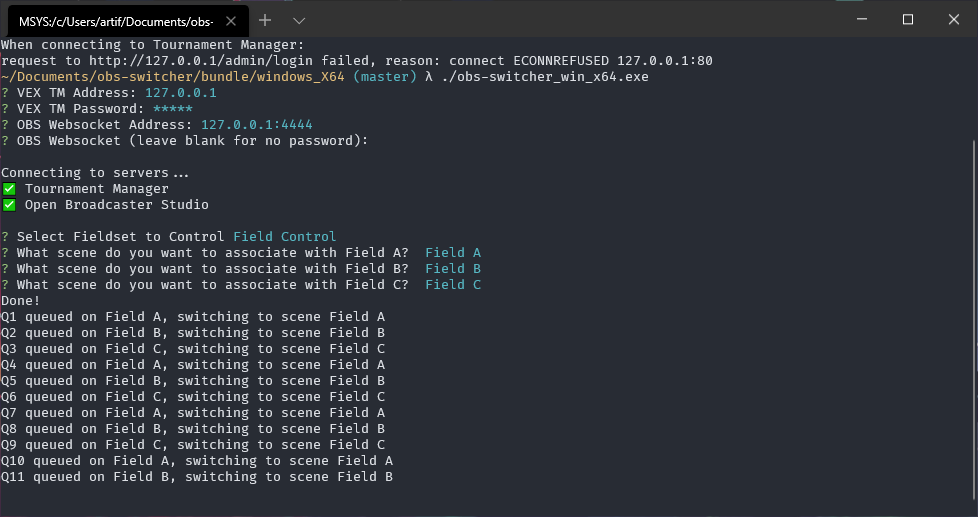
I wanted to share a tool I have recently developed: OBS Switcher. This is a small utility you can run which will connect to Tournament Manager, and automatically queue up a specific scene for each field.
Head over to the releases page and download the latest version for your platform. Alternatively, you can clone the repository and run the code from source.
Unzip the executable, and run!
Run From Source
If you don’t want to run from the precompiled executable, you can alternatively
run this program from the source code. This requires you have the following
software installed:
OBS is so cool. We’ve been using OBS and ManyCam for a while now, and we are planning to use them both for our events. I highly suggest that others use at least OBS. Great free program.
The best part about this app is the fact that it just works!!
I found out about this plug-in during our Kalahari Classic Signature Event 2022. I worked on getting it set up one evening and put it in production the next day during our Middle School VRC event.
Wow just WOW!
It ran perfectly during the whole middle school event.
The only problem that I ran into with the program was when we moved into our last 2 days. The last 2 days were our High School VRC event and it was split into 2 divisions in TM. Because we were running a 2 division event, we ran 2 live streams, one for each division each with its own dedicated computer.
The OBS Switcher “login” saw the one tournament manager server. And saw the 2 different divisions and allowed me to configure each scene on each Livestream for each division.
As soon as we would queue up the match on one of our divisions, the “Sahara Division”, OBS Switcher would throw an error and fail to switch the scene. The other computer running the other live stream would work perfectly. So, we only had to have 1 person switch the scene on the one computer giving us the error.
The weird thing is the computer that was having the issue was the one that we ran the day before with no issues. The computer that I had the plug-in running on for the middle school event, would not run the plug-in correctly for that tournament.
I failed on my end to take a screenshot of the error window. But as soon as the event was over I created a single event in TM and tested it on the computer that was giving me the error. And it ran perfectly.
So my thought is it didn’t like or wasn’t written with Divisions in mind. Or there was just something that TM was throwing at it that it didn’t like.
Other than that issue, and because running divisions are a rare thing during 99% of the vex season, this program is one that anyone who is live streaming a VEX Robotics event should implement into their toolbox! NOW!
Thanks for writing such a great program!
Clinton Matlack
Photographer & Livestream for the Kalahari Classic Signature Event.
I’m glad you were able to get use out of it at Kalahari! And yeah, I have not tested it for multiple divisions, so I’m not surprised you had issues. A new feature to add for the future I suppose
I finally got the chance to give this program some love once things settled down after worlds! tm-obs-switcher is a small tool that attempts to automate many live stream management capabilities for robotics events that use Tournament Manager and Open Broadcaster Software.
New This Release
Multi-Division Support. tm-obs-switcher now properly handles events with multiple fieldsets and multiple divisions. Thanks to @Cmatlack from the Kalahari Signature for reporting this.
Audience Display Automation. Depending on the state of your tournament, show different audience display modes automatically.
Match Timestamp Recording. Record the time in the stream at which each match starts to a file, which can be used to easily make chapter markers in the stream description.
Better Error Handling. Previously, the program would immediately exit upon encountering an error. This made debugging errors much more annoying. Now, the program will wait for user input to exit and close the window. Errors also come with additional diagnostic information.
Head over to releases for more information and instructions on how to get it running at your events!
Time to start getting everything ready for the 2022-23 VEX Spin up season.
For those of you who Livestream your events and are wanting to automate your Livestream, and are on the fence about trying the TM OBS Switcher. All I can say is, DO IT! The new tweaks that @brendanmcguire has done, the addition of the " Audience Display Automation" is worth its weight in gold. You won’t be disappointed and as I have said in previous posts… It just works.
Just to save you some frustration on getting OBS and the Switcher set up working. And to keep @brendanmcguire in the loop for a possible problem I found.
Spoiler Alert* Currently 9-16-2022, I can not get the TM-OBS-Switcher to work with the latest OBS V 28.0.1. I assume that it has something to do with the Websocket being built into OBS and an upgraded version of WebSocket 5.0.1. I can get as far as entering the IP address to TM, and the Websocket IP, but it will not connect with TM and will hang. I’m sure that this will be a code tweak and everything will work flawlessly or I am missing something simple.
What I have got the TM OBS Switcher to work on is OBS 27.2.4.
As of today 9-16-22. I can only get TM-OBS-Switcher v.1.2.1 to work correctly on OBS version 27.2.4 and obs-Websocket-4.9.1 - The only thing that appears to not work is " Match Timestamp Recording" If I click on yes, it immediately disconnects the WebSocket and closes the TM-OBS-Switcher window. As long as I hit “N” everything works as it should.
Great job and I am ready to test this out with our local tournaments. And then at the Kalahari Classic!
OBS version 28 integrated its own custom WebSocket control system and deprecated the old extension. I am in the process of testing a solution and should release it soon!
This I have not yet experienced. I would imagine this would have to do with the code being unable to find a temporary directory to store the timestamps in. I will investigate this further.
This is a minor compatibility release with no new features. Thanks to @Cmatlack and @Droideka for bug reports!
Please Note: This release utilizes the new Websocket Control system found in OBS 28. Consequentially, this version is incompatible with prior versions of OBS. The previous version will continue to work.
Changelog
Upgrade to [email protected] to support the new integrated websocket control in OBS version 28. #8
Fixes a bug where match timestamps can’t be saved on windows #7
Not familiar with ManyCam software, but I use OBS for all the Live Streaming I use. OBS has allowed me to have up to 4 USB webcams and 1 mobile camera & a drone as inputs, all at the same time if I wish. At zero cost for great robust software. And with super support in various forums. It looks like ManyCam is a paid service, which is fine if that’s what you are looking for and are comfortable with. But I would say that its worth checking into OBS as its a free download and zero cost. Just my 2 cents.
I just wanted to chime in on the updated “tm-obs-switcher v1.3.1” just to let @brendanmcguire know that it is solid! I used it for our Kalahari Classic Signature event 2023 and I will be using it for our state tournament coming up.
Divisions worked perfectly. For our High School Tournament running 2 divisions and over 160+ matches in each division plus final finals, there were no issues. Same for our VEXU and Middle School tournaments.
Nothing like secretly turning your TM volunteer, into a Live Stream volunteer all in one shot!
I finally was able to get a good build! TM Switcher is a program that aims to automate some of the repetitive tasks of displays and livestreams when utilizing Tournament Manager
This release includes a number of new features that greatly improve the usability of the switcher:
ATEM Support. Now you can connect and control ATEM devices over the network! Note that due to a quirk in the protocol, connections over USB are not supported. You will need to network your switcher to control it. See the section in your user guide for more information about controlling ATEM devices over the network.
OBS Control Optional. To support situations where users just want display automation or ATEM support, connecting to OBS is now optional
Local Recordings. You can now configure the switcher to begin and end recording for each match. Right now there is a known issue where timeouts are recorded separately.
Updated CSV output to include participating teams in each match
You can download a MacOS build from the releases page. I test on an MacBook Pro with an M1 Pro, but I believe the binary produced is “fat” and so contains a build both for Intel Macs and Apple Silicon Mac’s.
Another option (and the one I do on event day for maximum flexibility) is to run the program from source. There are instructions in the main repository on how to do that.
The easiest approach is probably to open the file with the Terminal Application.
Something I am working on for the future is producing a more user-friendly application the user can just download and run instead of the somewhat rough script nature it has right now.